1 Git and GitHub Tools for Collaboration
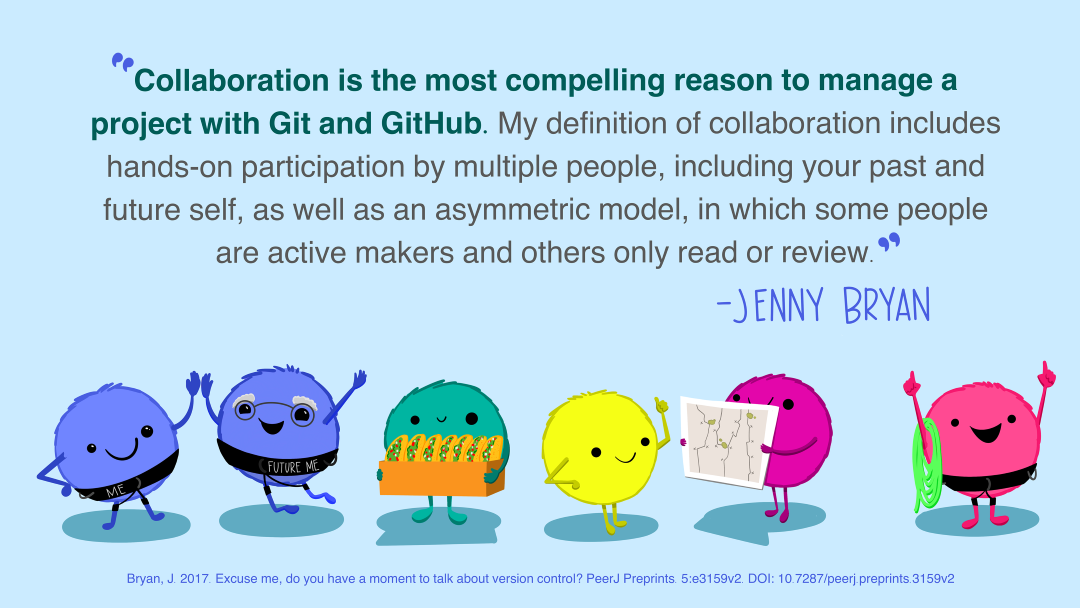
Git is a powerful tool for both individual and collaborative work. The most common way to collaborate is through a shared repository on GitHub, which acts as a central hub where teammates can exchange and merge changes. In this lesson, one person (the Owner) hosts the repository on GitHub and grants a colleague (the Collaborator) permission to push changes directly.
Before diving into the exercise, keep these tips in mind - we’ll return to them throughout:
- Start every work session with a Pull, and Pull occasionally throughout (to ensure you are up to date with your collaborator’s changes!)
- Save Stage (Add) Commit Sync (Pull Push) your work throughout the session, in small logical chunks (so your changes are available to your collaborator!)
And the single most effective conflict-prevention strategy: communicate with your collaborators before and after making changes. Knowing who is editing which files, and when, eliminates most problems before they start.
The RStudio IDE uses the terms Pull and Push for Git operations, while the Positron IDE uses Sync to encompass both pulling and pushing changes. Because the underlying Git operation is pull push, we will use this terminology instead of sync.
2 Collaborating Without Conflicts
2.1 Demonstration
We start with the ideal scenario: two collaborators taking turns, working on the same repo without ever editing the same lines simultaneously.
Here, the instructors will demonstrate. In the following exercise, the participants will pair up and try it themselves.
- Owner adds Collaborator on GitHub
- Owner creates a new repository on GitHub, called
git_collab_<username>(or similar), and includes a README.
- Then, Owner navigates to the repository Settings Collaborators Add people. Enter the Collaborator’s username and send the invitation.
- The Collaborator accepts via email or GitHub notifications, gaining push access.
- Owner creates a new repository on GitHub, called
- Collaborator clones the repository
- The Collaborator navigates to the Owner’s GitHub repository, copies the clone URL, and creates a new RStudio project or Positron folder from version control using that URL.
- Note: the cloned repo will not appear under the Collaborator’s own GitHub profile page.
- Collaborator creates new file, commit-pull-push
- With the repo cloned, the Collaborator creates a new Quarto document, edits the title (e.g., “Git Collaboration Tips”) and author(s). Delete any placeholder text in the body of the document, leaving just the YAML header and a blank body. Then paste in the content in the details box below.
- Save the Quarto doc as
git_collaboration_tips.qmdin the repo directory.
- With the repo cloned, the Collaborator creates a new Quarto document, edits the title (e.g., “Git Collaboration Tips”) and author(s). Delete any placeholder text in the body of the document, leaving just the YAML header and a blank body. Then paste in the content in the details box below.
Content for new file
Paste the following template text into the Quarto document body:
## Git Collaboration Tips

### Tips: <owner's name here>

<Owner adds their tips here!>

### Tips: <collaborator's name here>

<Collaborator adds their tips here!>

## How to Create a Merge Conflict

### Merge Conflict: Owner Resolves

<Owner and Collaborator edit the same line here to create a conflict! - COLLABORATOR commits-pulls-pushes first>

### Merge Conflict: Collaborator Resolves

<Owner and Collaborator edit the same line here to create a conflict! - OWNER commits-pulls-pushes first>

## Summary: How to Avoid Merge Conflicts

<Owner and Collaborator use best practices to write some concluding tips here!>- Collaborator follows the standard workflow:
- Stage and commit the new file
- Pull (to fetch any changes made since cloning)
- Push to the shared remote repository
Let the Owner know you’ve pushed your changes so they know it’s safe to pull.
- Owner pulls, all repos now in sync
- The Owner opens their local copy in RStudio and pulls the Collaborator’s changes.
- All three repositories - remote, Owner’s local, and Collaborator’s local - are now in sync.
- Owner and Collaborator add tips, then commit-pull-push
- The Owner then edits their own “tips” section ONLY.
- At the same time as the the Owner is adding their tips, the Collaborator adds their own tips to their section ONLY.
- Wrapping Up
- Both Owner and Collaborator follow the same commit pull push workflow - Decide who goes first, though it should not matter here - and communicate!
- Once both have pulled each other’s changes, the first person should do one last pull to retrieve changes made by the second.
- Check with each other to ensure the repositories are in sync again.
You’ve just successfully collaborated!
git pull includes a merge step. If you have uncommitted local changes, Git will refuse to merge - since it doesn’t know exactly where you’ve made changes, it doesn’t know where it can safely merge in your collaborator’s changes. Always:
commit pull push (RStudio or Terminal) or commit sync (Positron)
2.2 Exercise: Collaborate Well!
Get into pairs. Designate one person as Owner and one as Collaborator - we recommend whoever has the fewer repositories should be the Owner.
- Owner: Create a new repository
git_collab_<username>then go to Settings Collaborators Add people add your partner’s username - Collaborator: accept the invitation from your email or GitHub notifications
3 Merge Conflicts
A merge conflict occurs when two collaborators edit the same line(s) of the same file. Git cannot automatically decide which version to keep, so it pauses the merge and asks you to resolve the conflict manually.
When a conflict occurs, Git marks the affected section of the file like this:
 <<<<<<< HEAD
 Your version of this line
 =======
 Collaborator's version of this line
 >>>>>>> (commit SHA)
To resolve the conflict: edit the file so it reads how you want, remove all the marker lines (<<<<<<<, =======, >>>>>>>), then stage (add), commit-pull-push. This might look different depending on your IDE.
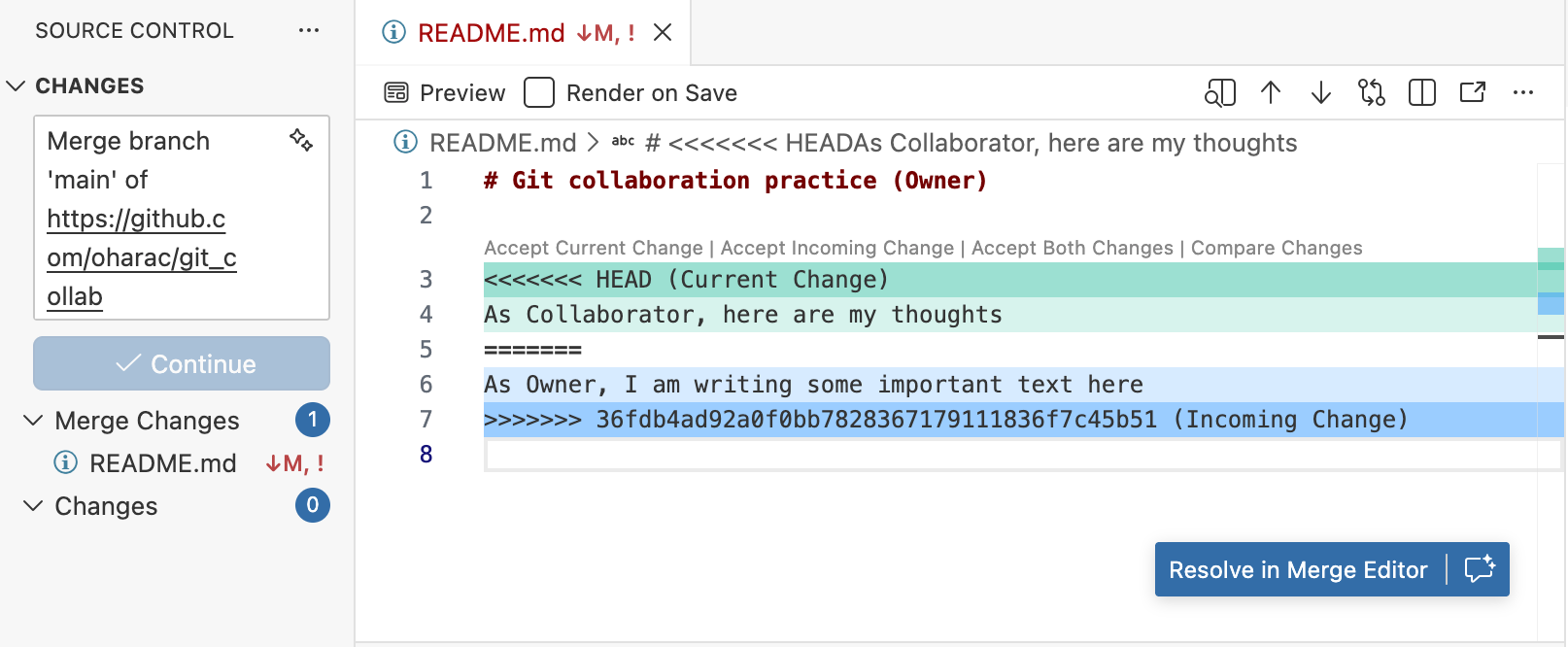
In Positron, when you pull remote changes that conflict with local changes, you will see a window that looks like this. Conflicted files appear with a red “!” icon in the Git pane. The image also shows the “diff” view where you can see the header <<<<<<<, footer >>>>>>> followed by commit SHA, and dividing line =======.
You can edit the conflicted file(s) directly in this view, or click on Resolve in Merge Editor to open the file in the Merge Editor:
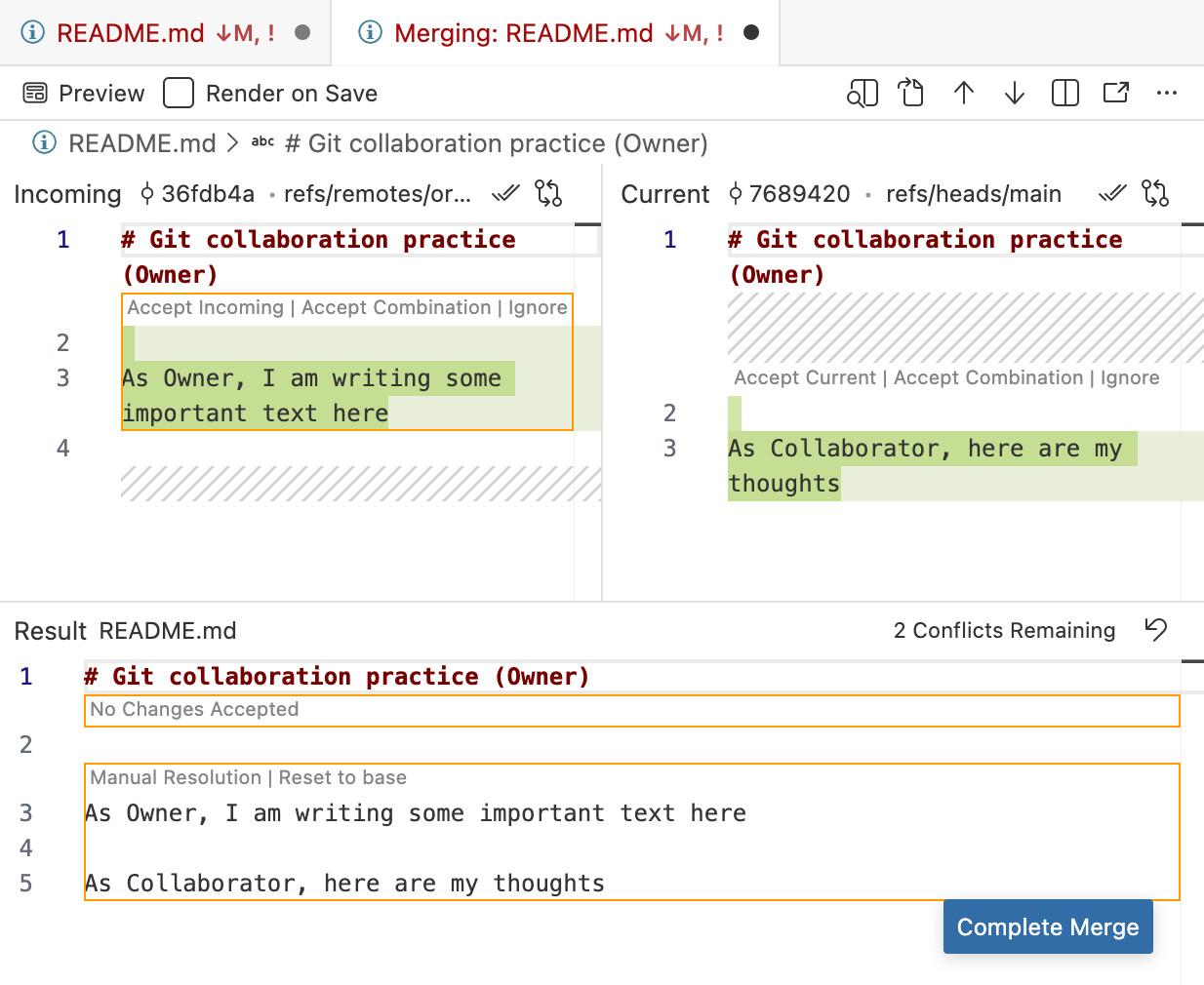
After resolution and staging, the icon changes to a green “M” (Modified).
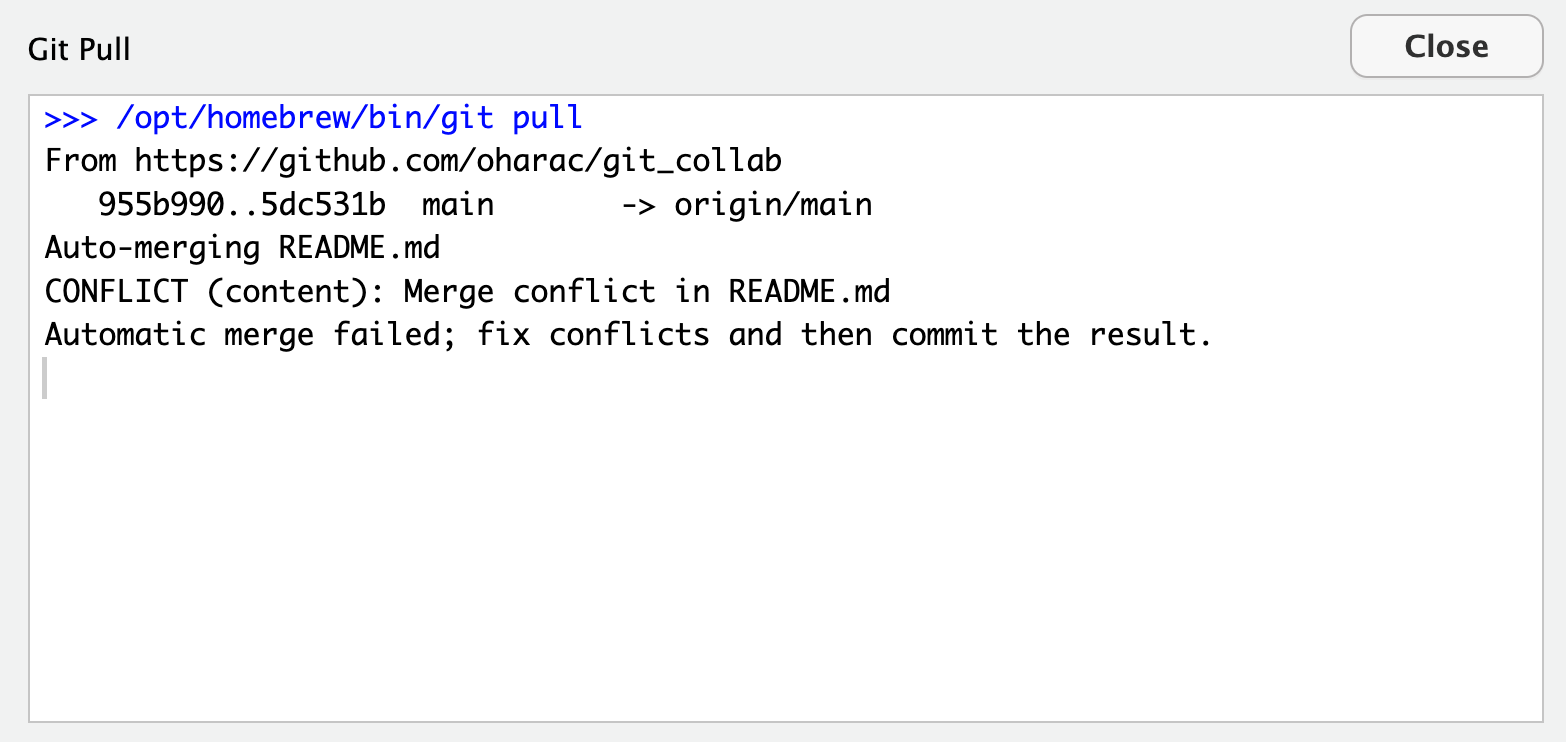
In RStudio, when you pull remote changes that conflict with local changes, you will see a window that looks like this. Read it - it basically says there was a merge conflict and it needs to be fixed and then committed before you can do anything else. Close the window.
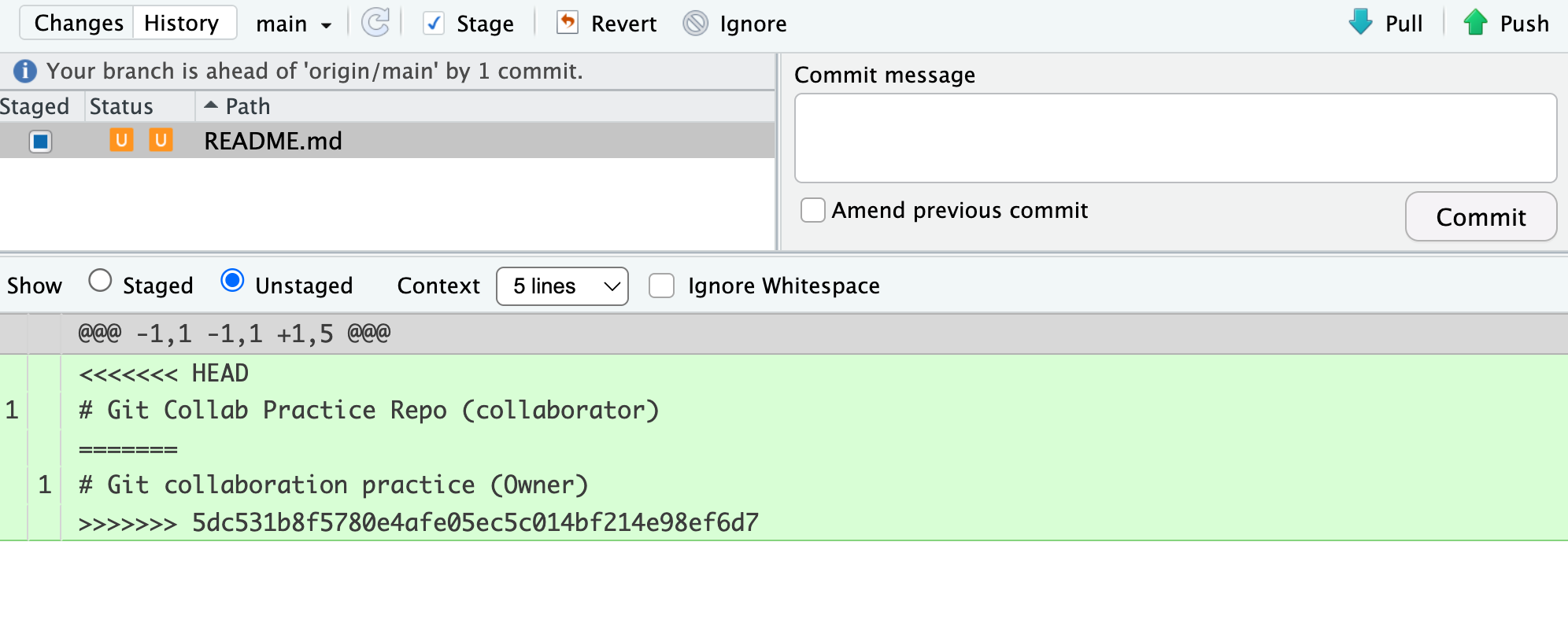
In RStudio, conflicted files appear with an orange U (Unmerged) in the Git pane. The image also shows the “diff” view where you can see the header <<<<<<<, footer >>>>>>> followed by commit SHA, and dividing line =======. You can resolve your edits in the text editor.
After resolution and staging, the icon changes to a blue M (Modified).
3.1 Resolve a Conflict, Three Ways!
Depending on whether you want to keep none, part, or all of the changes made by the collaborator and owner, there are three common options for resolving a merge conflict.
Open the file (or in Positron, use the Merge Editor), hand-edit the conflict blocks to produce the desired result (keeping some of each version if needed), making sure to remove the conflict marker lines. Then save your resolved file, stage, commit-pull-push. This is the most flexible approach.
Abort - if you made a mistake and want to start fresh:
git merge --abortThis returns the repo to a usable state, as it was just before you tried to pull - but you still haven’t integrated your collaborator’s changes. This basically just kicks the can down the line!
From the Terminal, choose whose version to keep (note, need to specify the file!). Note, you should DEFINITELY communicate with your collaborator before rejecting their changes wholesale.
To keep your collaborator’s version:
git checkout --theirs <path/to/conflicted_file.qmd>To keep your own version:
git checkout --ours <path/to/conflicted_file.qmd>Then stage, commit-pull-push as normal.
4 Producing and Resolving Merge Conflicts
4.1 Demonstration
As before, the instructors will first demonstrate this sequence. Then participants will pair off and work through this in the exercise that follows.
- Both pull to sync to the Owner’s
git_collab_<username>repository- Ensure both Owner and Collaborator have all the latest changes locally (Git pane shows no pending commits).
- Owner edits the content in the Quarto document under the section titled “Merge Conflict: Owner Resolves” and commits - but does not pull or push
- Collaborator edits the same line and commits - but does not pull or push
- Both people now have local commits that conflict with each other!
- Collaborator pushes
- GitHub now reflects the Collaborator’s version. The Owner is one commit behind.
- Owner tries to push and gets an error
- GitHub rejects the push because the Owner’s repo is out of date. The error message instructs them to pull first.
- Owner pulls but now, gets a merge conflict warning
- Git flags the conflict: the file appears with an orange U in RStudio’s Git pane. or a red ! in Positron’s Git pane.
- The file contains the conflict markers (
<<<<<<<,=======,>>>>>>>) showing both versions of the conflicting lines.
- Owner edits the file to resolve the conflict
- Owner communicates with Collaborator if there is any uncertainty about how to resolve the conflict.
- Find and resolve all
<<<<<<< ... ======= ... >>>>>>>blocks. Verify the code logic still works correctly after merging.
- Owner stages/adds the resolved file, then applies commit-pull-push workflow
- Collaborator pulls the resolved version
Both repos are back in sync. The commit history now shows the conflict branch and the merge. 😅
4.2 Exercise: Collaborate Poorly!
4.3 Discussion
What are some steps you could have taken to avoid merge conflicts in the first place? How would you communicate with your collaborator to prevent or resolve conflicts?
5 Best Practices to Avoid Merge Conflicts
Some basic rules of thumb can avoid the vast majority of merge conflicts, saving a lot of time and frustration. These are words our teams live by:
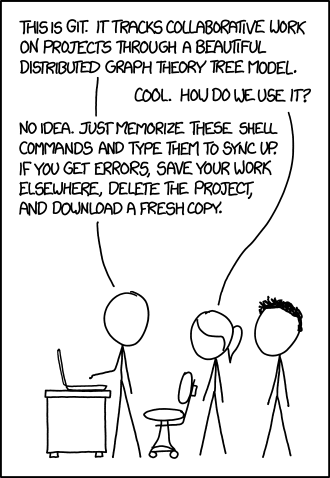
- Communicate before and after changes. Tell your collaborator what you’re about to work on, and when you’ve pushed.
- Divide the work and work in different sections or files. Avoid editing the same part of the same files simultaneously.
- Start every session with a pull. And then pull occasionally while working just to make sure you’re up to date with your collaborator’s changes.
- Pull again before you push (after committing). This ensures you have the latest changes before you try to push (and avoids Git’s warning about uncommitted changes).
- Commit in small, logical chunks. This makes it easier to review and easier to merge your changes.
- Make sure everyone understands the workflow before you start collaborating.
Pull  Edit  Save  Add (stage)  Commit  Pull*  Push

* Resolve any merge conflicts if necessary!
It may take a bit of practice to get comfortable with navigating merge conflicts, but like any other technical skill, they’ll become less intimidating with time. With careful communication and a consistent workflow, conflicts can be largely avoided or resolved when they do occur.
6 A Note on Advanced Collaboration Techniques
There are many Git and GitHub collaboration techniques, some more advanced than others. We won’t be covering advanced strategies in this course. If interested in exploring more advanced GitHub workflows, check out GitHub’s documentation on GitHub Flow or Atlassian’s documentation on Git Flow.