flowchart LR
    INPUTS --> ACTIVITIES --> OUTPUTS --> OUTCOMES/IMPACTS

    Scenario{{Accelerate synthesis via data science training}}

    R1[Instructor] & R2[Classroom space] & R3[Projector] --> B{Data Science Workshop}
    B --> C(Workshop Curriculum)
    B --> D(Presentations and Practice)

    C & D --> E[/Improved Delta management/] & F[/Increased analytic efficiency/]
1 Logic Models
Logic models are a planning tool that are designed to support program development by depicting the flow of resources and processes leading to a desired result. They are also used for outcomes-based evaluation of a program and are often requested as part of an evaluation planning process by funders or stakeholders.
1.1 Inputs, Outputs, Outcomes
A simplified logic models comprise three main parts: Inputs, Outputs and Outcomes.

Inputs reflect what is invested, outputs are what is done and outcomes are the results of the program.
In a more detailed logic model, outputs and outcomes are further broken down:
- Outputs are often represented as ‘Activities’ and ‘Participants’. By including participation (or participants), the logic model is explicitly considering the intended audience, or stakeholders, impacted by the program. Engagement of this audience is an output.
- In the case of outcomes, these can be split into short, medium and long-term outcomes. Some people may label this last category ‘Impact.’

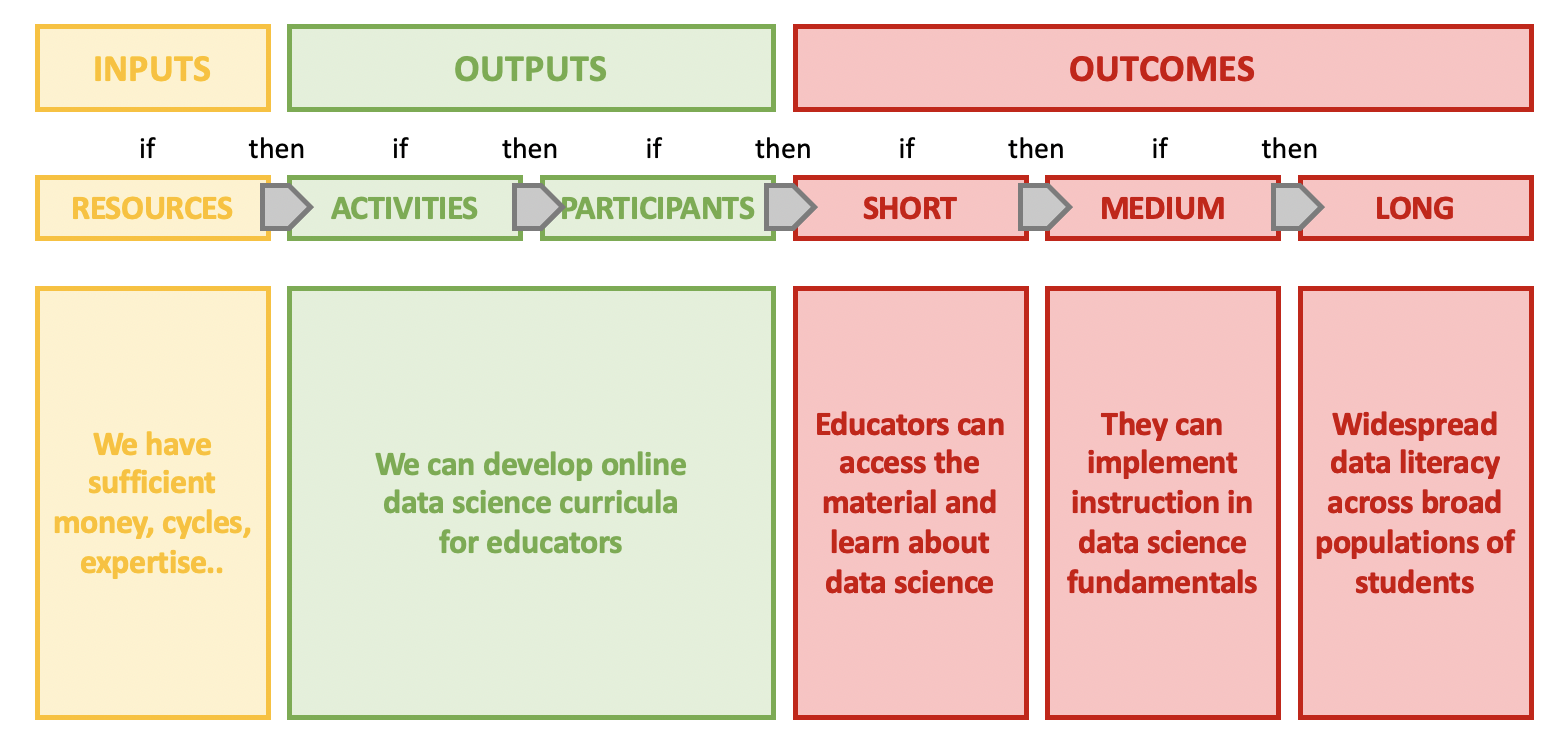
Defining the inputs, outputs and outcomes early in a planning process enables teams to visualize the workflow from activity to results and can help mitigate potential challenges. Logic models can be thought of as having an “IF this THEN that” structure where inputs outputs outcomes.

In the example below we have constructed a simple logic model for a hypothetical project where training materials are being developed for a group of educators to implement at their respective institutions.
1.2 Linkages
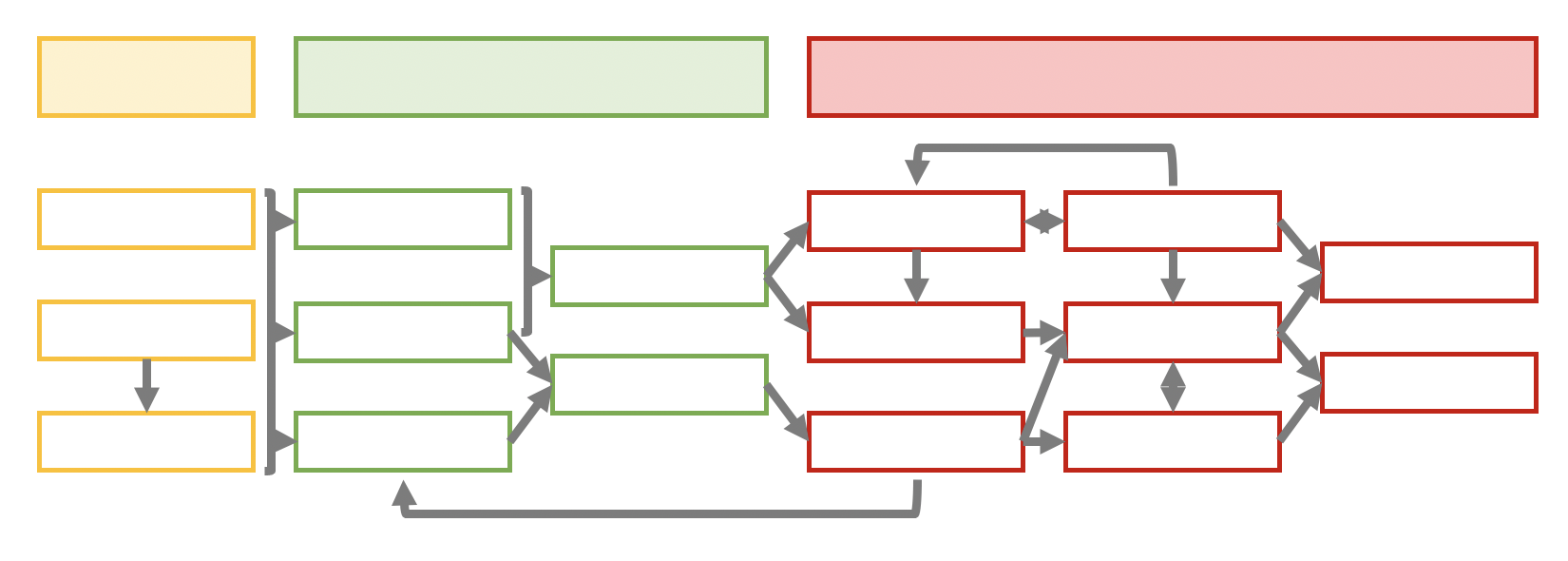
Linkages are not always sequential and can be within categories, bi-directional and/or include feedback loops. Detailing this complexity of relationships, or theory of action, can be time consuming but is a valuable part of the thought process for project planning. In exploring all relationships, logic modeling also allows for assessing program feasibility.
TipOther variations
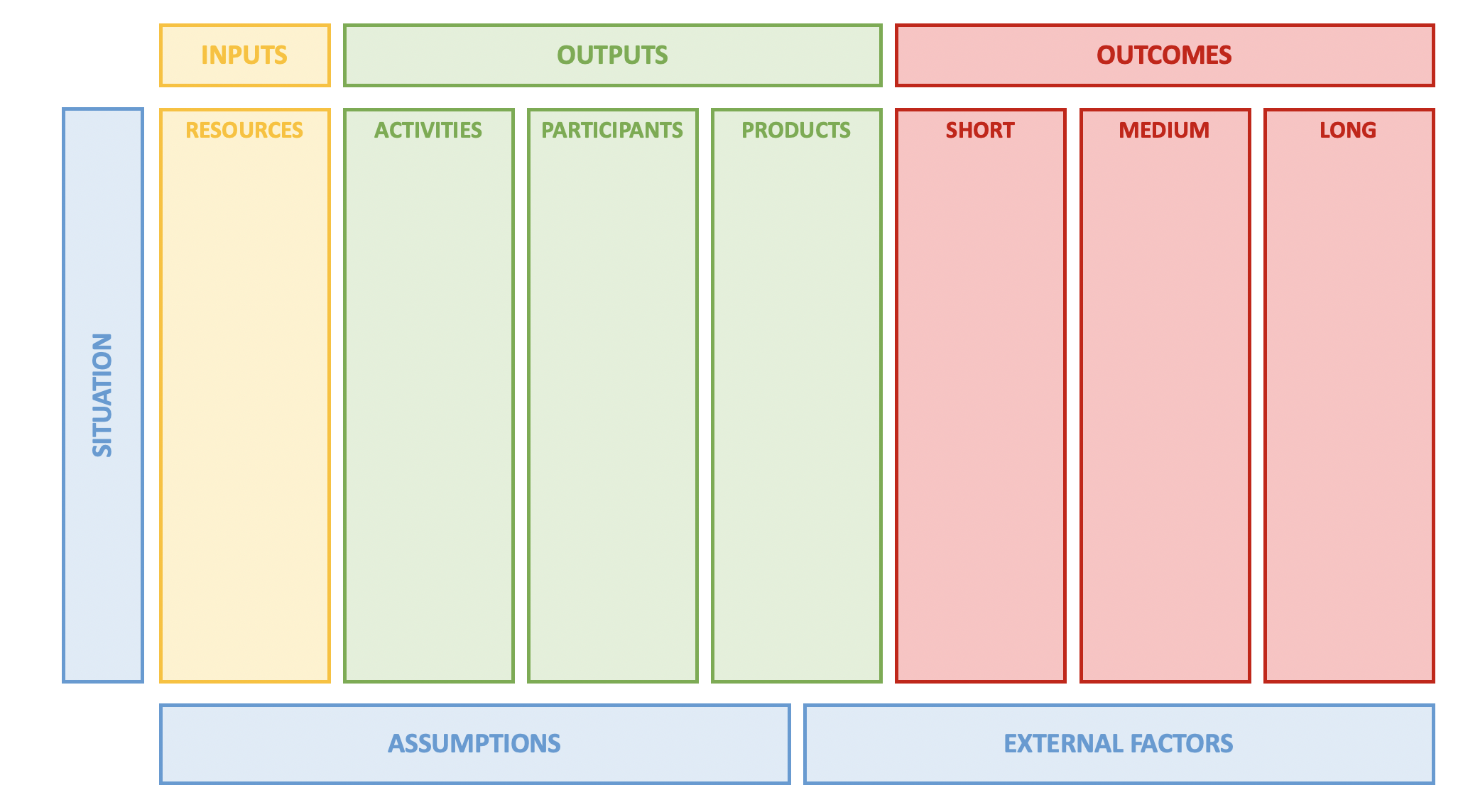
The above graphics include two sections within Outputs - Activities and Participants - and this is quite common. There is variation in logic model templates, including versions with a third type of output - “Products’. Sometimes description of these products is contained within the Activities section - for example, ‘develop curricula’, ‘produce a report’ - however calling these out explicitly is beneficial for teams focused on product development.
1.3 Situations, Assumptions, External Factors
Program development (and logic modeling) occurs in response to a given ‘Situation’ or need, and exploring this is the first step in modeling. The situation defines the objective, or problem, that the program is designed to solve hence some logic models may omit the left-hand situation column but be framed with Problem and Solution statements. Finally, comprehensive logic modeling takes into consideration assumptions that are made with respect to the resources available, the people involved, or the way the program will work and also recognizes that there are external factors that can impact the program’s success.
NoteIn Summary
Logic models support program development and evaluation and comprise three primary steps in the workflow:
- Inputs: Resources, contributions, and investments required for a program;
- Outputs: Activities conducted, participants reached, and products produced; and
- Outcomes: Results or expected changes arising from the program structured as short-, medium- and long-term.
2 Logic Models for Synthesis Development
Logic models are one tool for program development and have sufficient flexibility for a variety of situations, including planning for a research collaboration. While some logic model categories may feel less relevant (can we scale up to a long-term outcome from a published synthesis?), the process of articulating the research objective, proposed outcome, associated resources and activities has value. Below are examples of questions that a typical logic model (LM) will ask, and how these might be reframed for a research collaboration (RC).
3 Tools
3.1 Slide Template
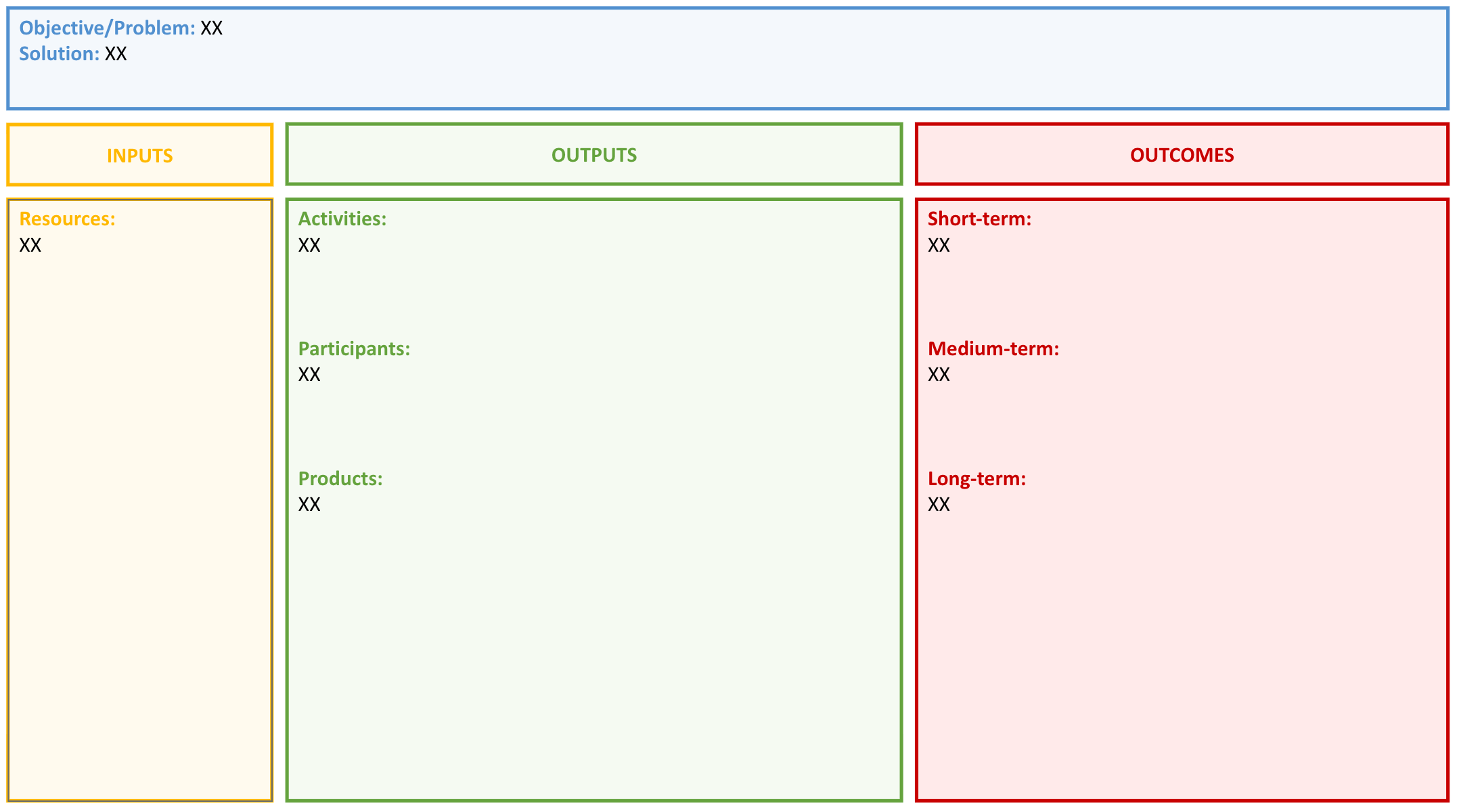
A good starting point for drafting a logic model is a logic model template
- And here is the same logic model template on Google Drive
3.2 Mermaid Flowchart
Mermaid flowcharts are supported in Quarto documents. Mermaid is a JavaScript-based tool for creating diagrams and flowcharts using text-based syntax.
Here is a simple example of a logic model Mermaid flow chart for a hypothetical synthesis project.
To create the diagram, create a Mermaid code block in a Quarto document (note the {mermaid} in the header) and use Mermaid syntax to define the flowchart.
```{mermaid}
flowchart LR
    INPUTS --> ACTIVITIES --> OUTPUTS --> OUTCOMES/IMPACTS

    Scenario{{Accelerate synthesis via data science training}}

    R1[Instructor] & R2[Classroom space] & R3[Projector] --> B{Data Science Workshop}
    B --> C(Workshop Curriculum)
    B --> D(Presentations and Practice)

    C & D --> E[/Improved Delta management/] & F[/Increased analytic efficiency/]
```