1 Link a Folder to Positron
In this course, we are going to be using Positron to practice technical skills and work in your synthesis working groups. Positron allows you to link it with a folder (a.k.a. “directory”) on your local computer. In a moment, we’ll talk about ways you can make that folder as organized as possible (and keep it that way!), but for now, let’s link Positron to an empty folder.
The Big Idea: keeping your work for separate projects in separate folders–and linking each of those separately to Positron–is a reproducible research best practice because it implicitly sets a “working directory” to that folder. This means that file paths within each project’s folder ‘just know’ your computer’s organization “upstream” of the project folder. That means that collaborators with different folder structures can all still run the same code if you have the same folder structure within the project folder. This is the power of a “relative file path” (i.e., a file path that is relative to the working directory) versus an “absolute file path” (i.e., a file path that includes all user-specific folders from the hard drive all the way down to the project folder).
Consider your current data analysis workflow. Where do you import you data? Where do you clean and wrangle it? Where do you create graphs, and ultimately, a final report? Are you going back and forth between multiple software tools like Microsoft Excel, JMP, and Google Docs? Linking Positron to a folder and being intentional about organization within that folder will consolidate this process because you can manage everything from a single software tool: Positron!
- In your file manager ( “Finder” | “File Explorer”), make a folder in your “Documents” folder
- Name that folder
training_{username}(e.g.,training_oharacortraining_njlyon0)
- Name that folder
- In Positron, click the folder icon in the top right
- Click “Open Folder…”
- In the resulting pop-up, find your
training_{username}folder, select it, then click “Open”
Positron should open your folder automatically at this point. One way to check this is by looking at the top right corner and checking that your folder’s name is next to the folder icon.
2 Effective Project Organization
When starting a new research project, one of the first things I do is make a folder for it and link that to Positron (just like we have here!). The next step is to then populate that project folder with relevant sub-folders. The goal is to organize your project so that it is a compendium of your research. This means that the project has all of the digital parts needed to replicate your analysis, including code, figures, manuscript drafts, and data.
Some common directories are:
data: where we store our data (often contains subdirectories for raw and processed data, as well as metadata)docs: summaries or reports of analysis or other relevant project informationplotsorfigs: generated plots, graphs, and figuresscripts:has all scripts where you clean and wrangle data and run your analysis.tools: contains scripts with your custom functions
Directory organization will vary from project to project, but the ultimate goal is to create a well-organized project for both reproducibility and collaboration.
training_oharac
├– README.md
├– data
| ├– raw
| └– processed
├– plots
├– scripts
| ├– 01_harmonize.r
| ├– 02_wrangle.r
| └– 03_analyze.r
├– docs
| └– 2026_04_results.pdf
└– tools
└– calc_diversity.r
For this week we are going to create 3 folders (a.k.a. “directories”) in our training_{username} folder.
- In your file manager ( “Finder” | “File Explorer”), make three new folders:
data,plots,scripts - Go to the “Explorer” tab of Positron (top left; has an icon like this: )
- Confirm that your new folders are visible to Positron
Note that if you prefer, you can make new folders directly from the “Explorer” tab of Positron (by clicking the small button of a folder with a plus sign)
3 Using File Paths in an Positron Folder
Now that we have your project folder created and linked with Positron, let’s learn how to move in a project. We do this using “paths”.
In computing, there are two types of path: “absolute” and “relative”.
An absolute path always starts with the root of your file system ( something like /Users | something like C:\) and locates files from there. No two users will have the same absolute file path, so using an absolute file path is a recipe for a non-reproducible workflow!
Example:
/Users/lyon/Documents/iowa-state/ms-chap-01/data/raw-butterflies-2017.xlsx
A relative path starts from some location in your file system that is below the root (i.e., it is the file path relative to some folder in your computer). Relative paths are combined with the path to that location to locate files on your system. Some coding languages refer to the location where the relative path starts as our “working directory”. Others working on the same project on their local computer will have the same relative file structure, so using relative file paths enables (but does not guarantee) a reproducible workflow!
Example:
data/raw-butterflies-2017.xlsx
Positron automatically sets the working directory to the folder you linked! This means that you can reference files from within the project without worrying about where the project directory itself is.
For example, if I want to read in a file from the data directory within my training project, I can simply type read.csv("data/samples.csv") as opposed to read.csv("/Users/lyon/Documents/delta/training_oharac/data/samples.csv").
This is a time-saver for you when you work alone (because you’re not typing the absolute path every time) but when working in teams it is the key to the same code files being run-able by everyone in the project! For example, a collaborator with the same relative path can use read.csv("data/samples.csv") without editing the code while they would need to make several edits to the absolute path for it to work for them.
3.1 File Paths Across Operating Systems
If your team includes both Mac/Linux and Windows users, even relative paths could potentially fail because the two operating systems use a different direction of slash to separate pieces of the file path ( data/samples.csv | data\samples.csv). To complicate things, R has a special use for the backslash \. Fortunately, easy solutions exist to ensure cross platform compatibility:
- R for Windows understands both types of slashes, so you can always just use the forward slash
/.
- The
file.path()function in R is useful for building and automating file paths, and automatically detects the computer’s operating system and insert the correct slash type for that computer.
3.2 Avoid Manually Setting your Working Directory!
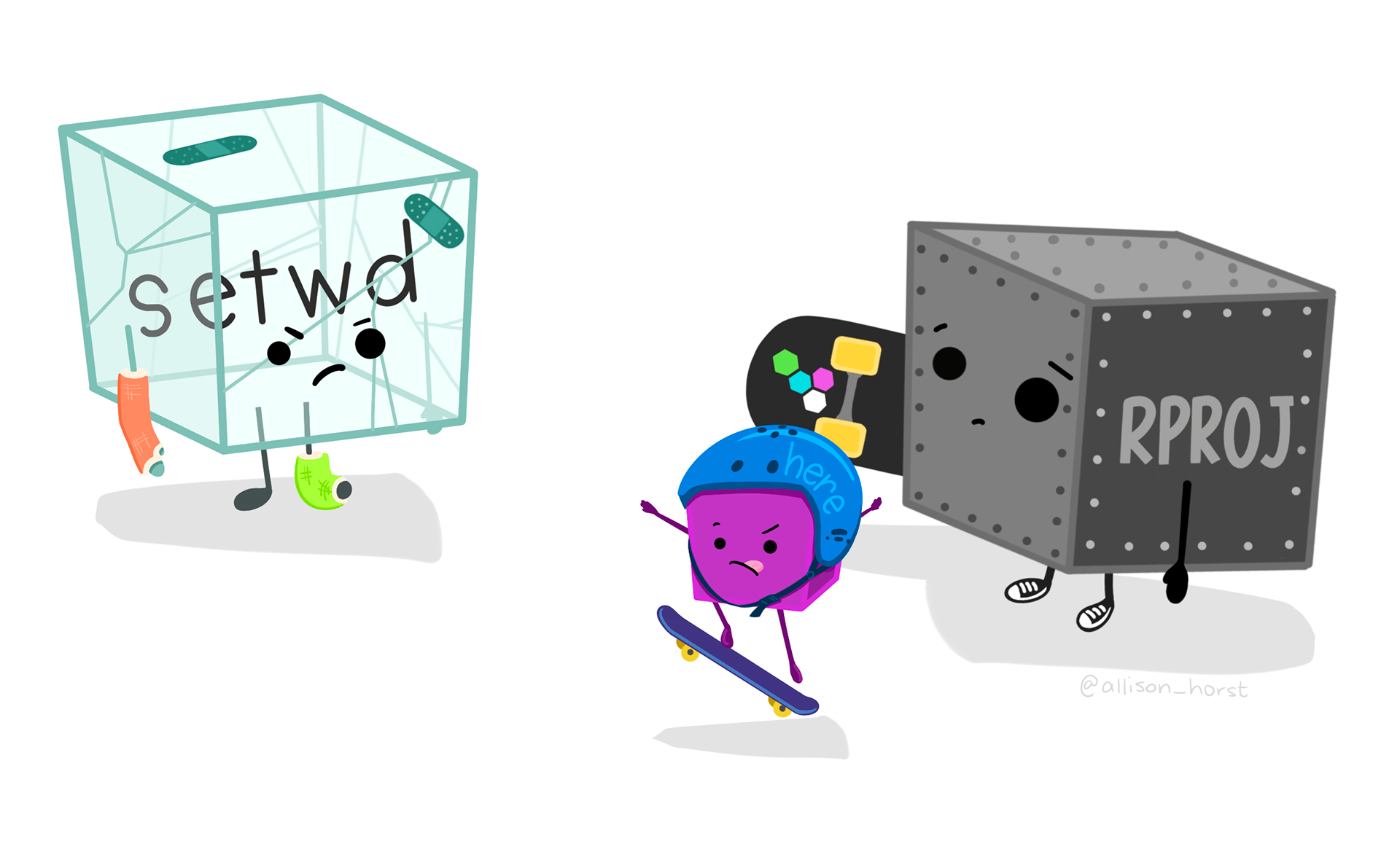
Note that once you start working in Positron folders you should basically never need to run the setwd() command. If you are in the habit of doing this, stop and take a look at where and why you do it. Could leveraging the working directory eliminate this need? Almost definitely!
Similarly, think about how you work with absolute paths. Could you leverage the working directory of your R project to replace these with relative paths and make your code more portable? Probably!