- How to use Git, GitHub (+Pages), and Quarto to publish an analysis to the web
1 Introduction
Sharing your work with others in engaging ways is an important part of the scientific process.
So far in this course, we’ve introduced a small set of powerful tools for doing open science:
- R and its many packages
- RStudio
- Git
- GitHub
- Quarto
Quarto, in particular, is amazingly powerful for creating scientific reports but, so far, we haven’t tapped its full potential for sharing our work with others.
In this lesson, we’re going to take our import-template-{USERNAME} GitHub repository and turn it into a beautiful and easy to read web page using the tools listed above. We will learn to use git clone and git checkout so that you will be the owner or your repository.
From RStudio’s File drop-down menu, select New Project.
Choose Version Control -> Git: Clone a Project from a Git repository
In GitHub: Go to their repo (from Classroom) -> Click Code → HTTPS -> Copy the URL
Paste the URL when requested in RStudio
Name your repo something different than your assignments repo, owned by your instructors. Unfortunately, your cloned repo is still owned by us…
Create your own repository on GitHub (maybe call it portfolio): Click New Repository -> Choose Public -> Don’t add a .gitignore -> Copy the new URL
Type in the terminal on RStudio for your cloned project and replace the default https with the URL you copied for the repo you own (portfolio)
git remote set-url origin https://github.com/YOUR-USERNAME/YOUR-NEW-REPO.gitgit push -u origin main
Activate GitHub Pages for the
mainbranch- First make your repo public: Settings -> Danger Zone -> Change repository visibility
- Go to Settings -> Pages (underneath the Code and Automation section)
- Keep the “Source” as “Deploy from a branch”
- Under “Branch” you’ll see a message that says “GitHub Pages is currently disabled”. To change this, change the branch from “None” to
main. Keep the folder as therootand then click “Save” - You should see the message change to “Your GitHub Pages site is currently being built from the
mainbranch”
Note: index.html represents the default file for a web site, and is returned whenever you visit the web site but doesn’t specify an explicit file to be returned.
Make sure you are in your newly cloned and owned Project
Find and open
index.qmd. If you don’t find it, add a new Quarto file at the top level calledindex.qmd- Go to the RStudio menu File -> New File -> Quarto Document
- This will bring up a dialog box. Add the title “GitHub Pages Example”, keep the Default Output Format as “HTML”, and then click “OK”
Save the Quarto Document you just created. Use
index.qmdas the file name- Be sure to use the exact case (lower case “index”) as different operating systems handle case differently and it can interfere with loading your web page later
Press “Render” and observe the rendered output
- Notice the new file in the same directory
index.html - This is our Quarto file rendered as
HTML(a web page)
- Notice the new file in the same directory
Commit your changes (for both
index.qmdandindex.html) with a commit message, andpushto GitHub- If you have a folder called
index_files, commit this as well. This folder contains the all the formatting and display settings for your html page.
- If you have a folder called
Note: index.qmd represents the default file for a web site, and is returned whenever you visit the web site but doesn’t specify an explicit file to be returned.
Now, the rendered website version of your repo will show up at a special URL.
GitHub Pages follows a convention like this:
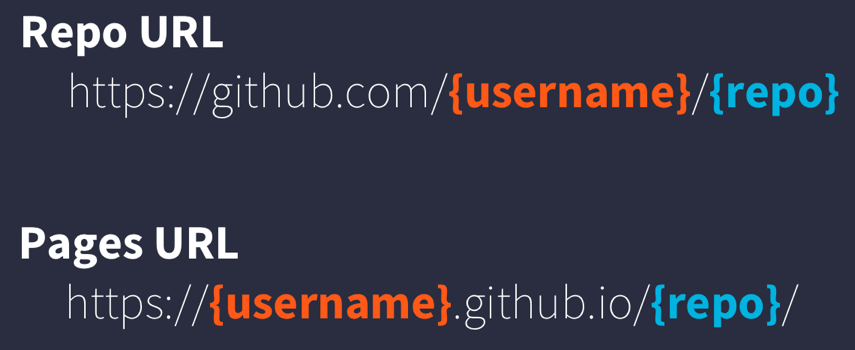
Note that it changes from github.com to github.io
- Go to
https://{username}.github.io/{repo_name}/(Note the trailing/) - Observe the awesome rendered output
Now that we’ve successfully published a web page from an Quarto Document, let’s make a change to our Quarto Document and follow the steps to publish the change on the web:
- Go back to your
index.qmd - Delete all the content, except the
YAMLfrontmatter - Type “Hello world” or a different welcoming message
- Render
index.qmd - Use Git workflow:
Stage (add) -> Commit -> Pull -> Push - Go back to
https://{username}.github.io/{repo_name}/
Next, we will show how you can link different qmd’s rendered into html so you can easily share different parts of your work.
2 Assignment a09
Quarto web pages are a great way to share work in progress with your colleagues. However, if you don’t want your work to be public after this course is over, you can stop hosting your GitHub page after grades have been posted by changing your repo to Private (from Public).
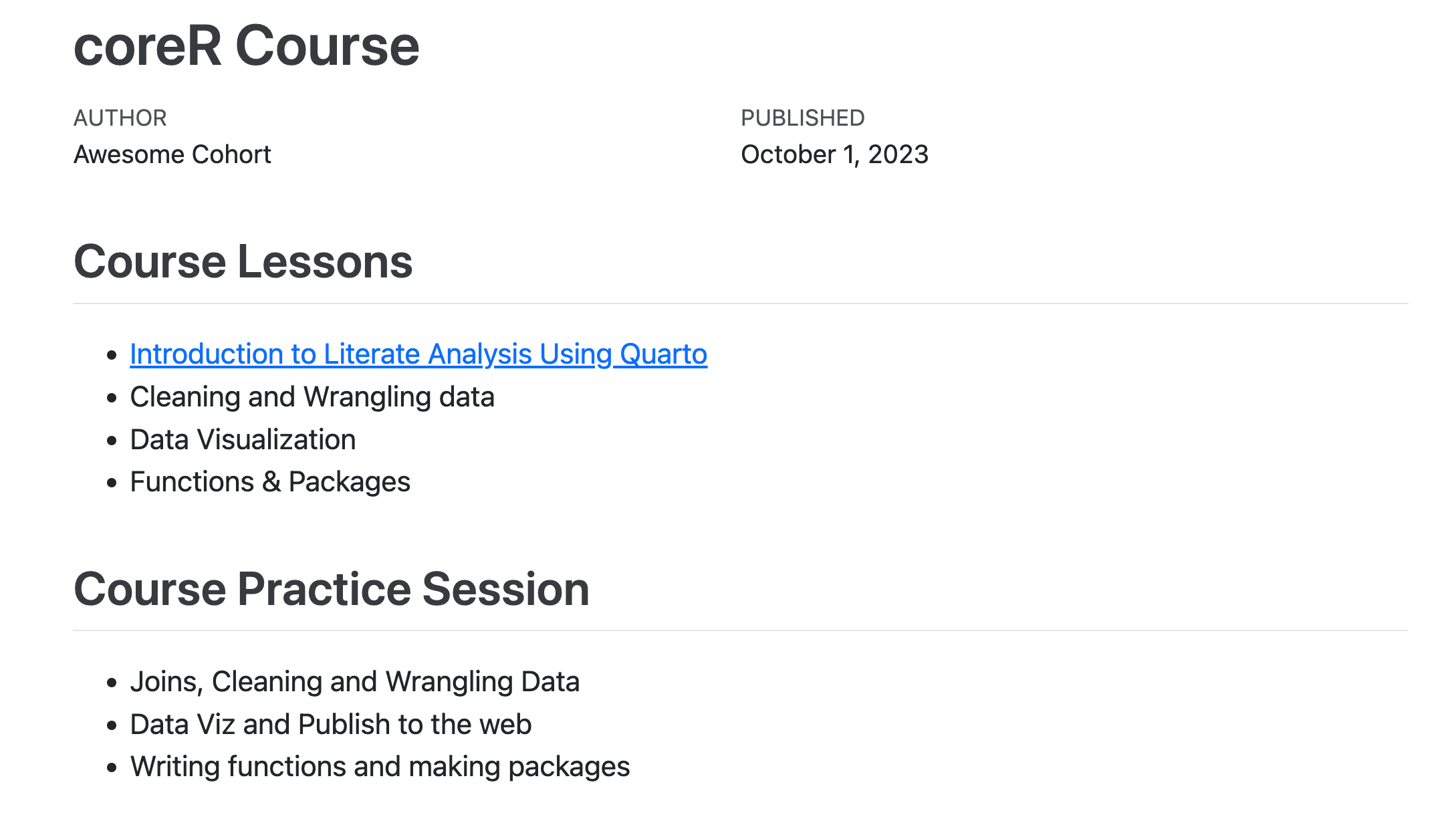
Here we showed an example with the materials we have created in this course. However, you can use these same steps to share the different files and progress of a project you’ve been working on. To do so simply requires thinking through your presentation so that it highlights the workflow to be reviewed. You can include multiple pages and build a simple web site and make your work accessible to people who aren’t set up to open your project in R. Your site could look something like this: