- Set up R and Rstudio on your laptop
- Practice creating an R Project
- Organize an R Project for effective project management
- Understand how to move in an R Project using paths and working directories
1 Download RStudio
To give you the skills to set up R, RStudio, and quarto, we will spend some time to make sure everyone has the three components integrated on their own laptop. Later we will link R and GitHub, so you can submit your assignments and practice using version control.
Click on the link and download and install R before installing RStudio
https://posit.co/download/rstudio-desktop/
If you already have R and RStudio on your laptop, you might be able to skip some steps, but RStudio requires R version 3.6.0+, so you might have to update R. Recent versions of RStudio will install quarto automatically. If you already have RStudio on your laptop, check for quarto by typing the following in the Console:
system("quarto --version")
If you don’t get a version number, you need to update or reinstall RStudio with quarto.
2 Create an R Project
In this course, we are going to be using an R project to organize our work. An R project is tied to a directory on your local computer, and makes organizing your work and collaborating with others easier. Eventually, you are going to submit your work using an R Project tied to a GitHub repo that the instructors can assess. To start, we will create a practice R Project.
The Big Idea: using an R project is a reproducible research best practice because it bundles all your work within a working directory. Consider your current data analysis workflow. Where do you import you data? Where do you clean and wrangle it? Where do you create graphs, and ultimately, a final report? Are you going back and forth between multiple software tools like Microsoft Excel, JMP, and Google Docs? An R project and the tools in R that we will talk about today will consolidate this process because it can all be done (and updated) in using one software tool, RStudio, and within one R project.
- In the “File” menu, select “New Project”
- Click “New Directory”
- Click “New Project”
- Under “Directory name” type:
training_{USERNAME}(i.e.training_vargas) - Leave “Create Project as subdirectory of:” set to
~ - Click “Create Project”
RStudio should open your new project automatically after creating it. One way to check this is by looking at the top right corner and checking for the project name.
3 Organizing an R Project
When starting a new research project, one of the first things scientists often do is create an R Project for it (just like we have here!). The next step is to then populate that project with relevant directories. There are many tools out there that can do this automatically. Some examples are rrtools or usethis::create_package(). The goal is to organize your project so that it is a compendium of your research. This means that the project has all of the digital parts needed to replicate your analysis, like code, figures, the manuscript, and data access.
Some common directories are:
data: where we store our data (often contains subdirectories for raw, processed, and metadata data)R: contains scripts with your custom R functions, etc. (some find this name misleading if their work has other scripts beyond the R programming language, in which case they call this directoryscripts)plotsorfigs: generated plots, graphs, and figuresdocs: summaries or reports of analysis or other relevant project informationscripts:has all scripts where you clean and wrangle data and run your analysis.
Directory organization will vary from project to project, but the ultimate goal is to create a well organized project for both reproducibility and collaboration.
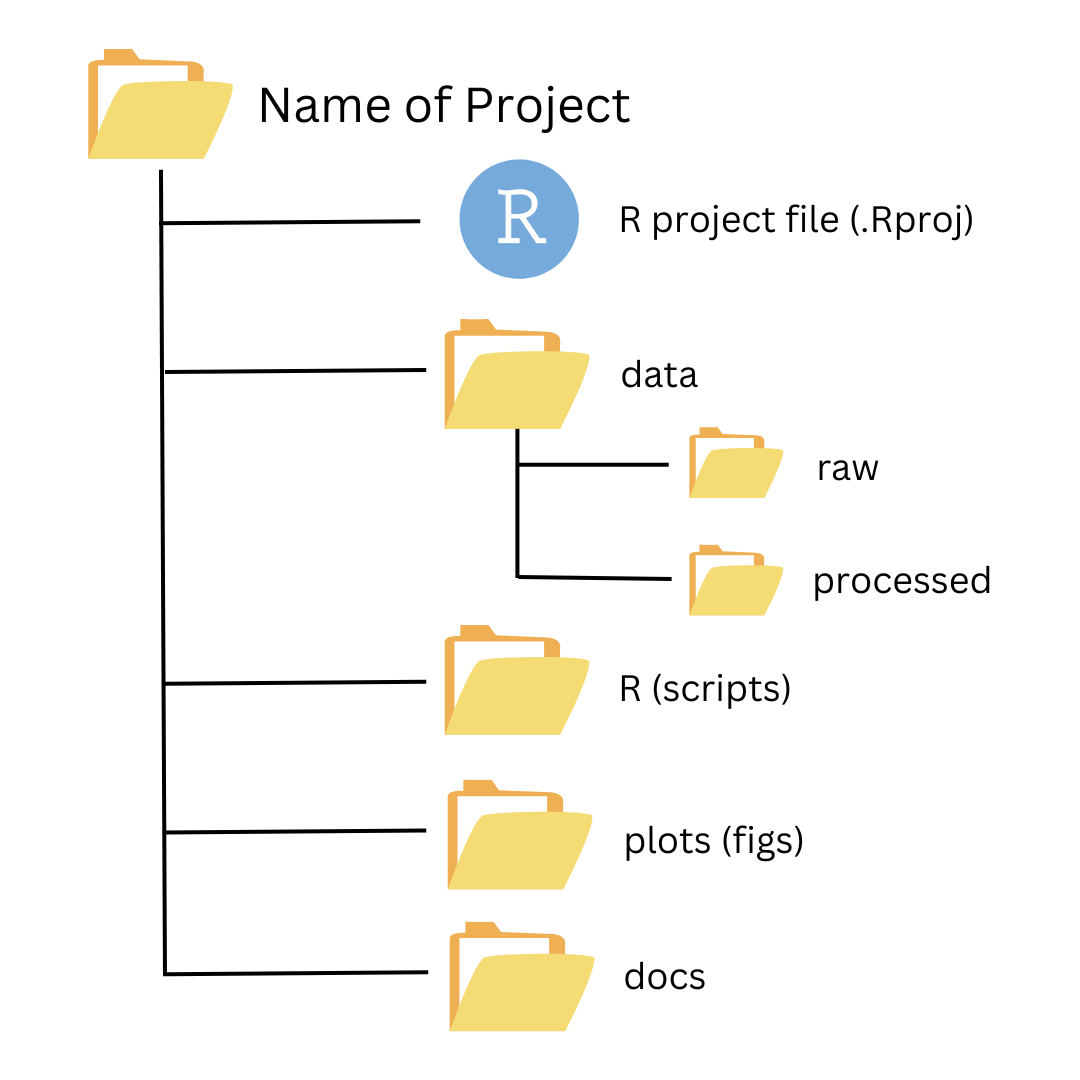
For this week we are going to create 3 folder (directories) in our training_{USERNAME} Rproject.
- In the files pane in RStudio (bottom right), click on Folder button (with a green circle and plus sign) and create 3 new folders:
data,plots,Rscripts.
The idea here is treat this RProject as an example of how to organize our work.
4 Moving in an R Project using Paths & Working Directories
Now that we have your project created (and notice we know it’s an R Project because we see a .Rproj file in our Files pane), let’s learn how to move in a project. We do this using paths.
There are two types of paths in computing: absolute paths and relative paths.
An absolute path always starts with the root of your file system and locates files from there. The absolute path to my project directory is:
/home/vargas-poulsen/training_vargasRelative paths start from some location in your file system that is below the root. Relative paths are combined with the path of that location to locate files on your system. R (and some other languages like MATLAB) refer to the location where the relative path starts as our working directory.
In your Rstudio console, print your current working directory
getwd()
RStudio projects automatically set the working directory to the directory of the project. This means that you can reference files from within the project without worrying about where the project directory itself is. If I want to read in a file from the data directory within my project, I can simply type read.csv("data/samples.csv") as opposed to read.csv("/home/vargas-poulsen/training_vargas/data/samples.csv").
This is not only convenient for you, but also when working collaboratively. We will talk more about this later, but if Matt makes a copy of my R project that I have published on GitHub, and I am using relative paths, he can run my code exactly as I have written it, without going back and changing /home/vargas-poulsen/training_vargas/data/samples.csv to /home/jones/training_jones/data/samples.csv.
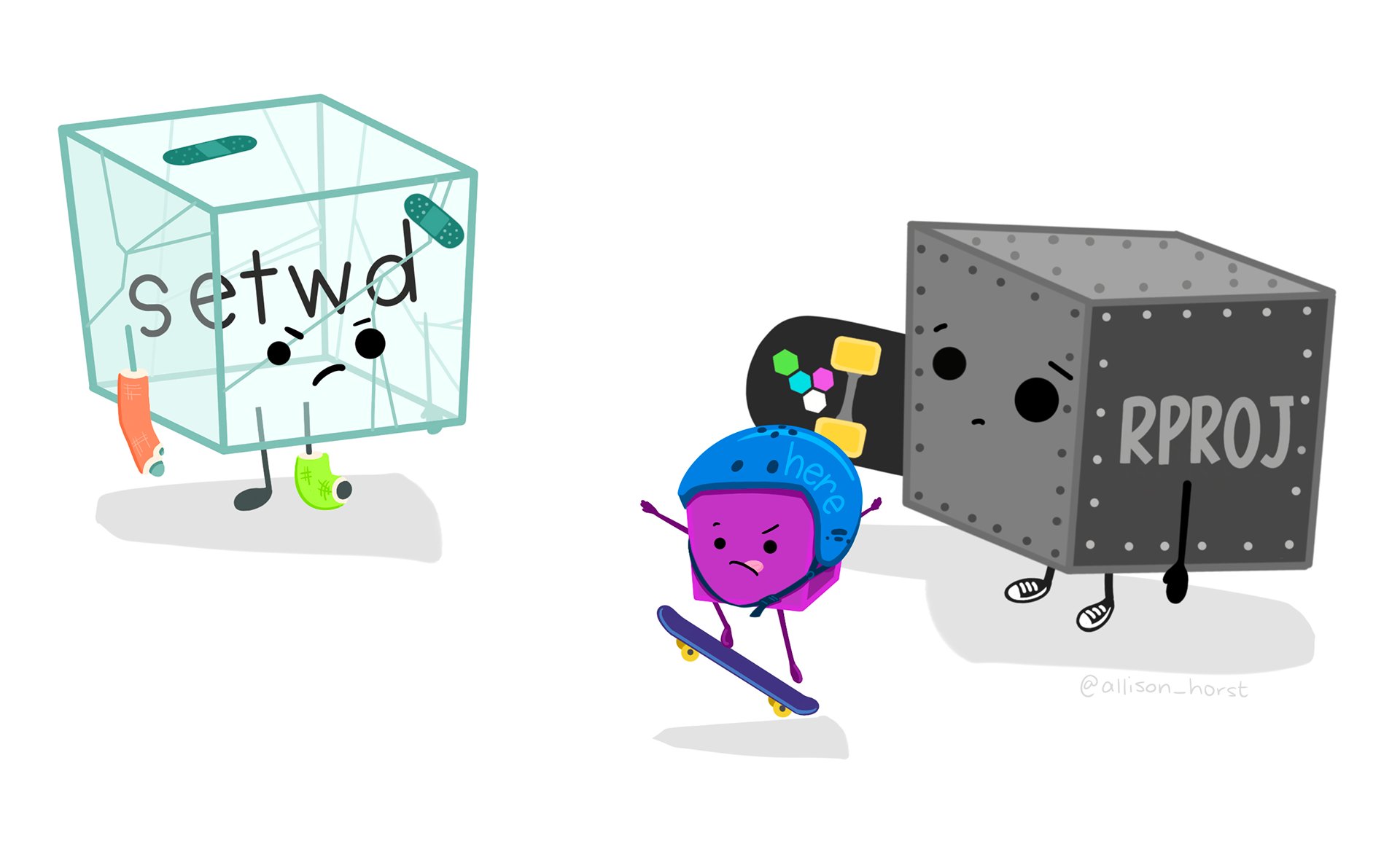
Note that once you start working in projects you should basically never need to run the setwd() command. If you are in the habit of doing this, stop and take a look at where and why you do it. Could leveraging the working directory concept of R projects eliminate this need? Almost definitely!
Similarly, think about how you work with absolute paths. Could you leverage the working directory of your R project to replace these with relative paths and make your code more portable? Probably!