Scripts in R and RStudio

An introduction to programming in R


NCEAS Learning Hub

Creating an R script

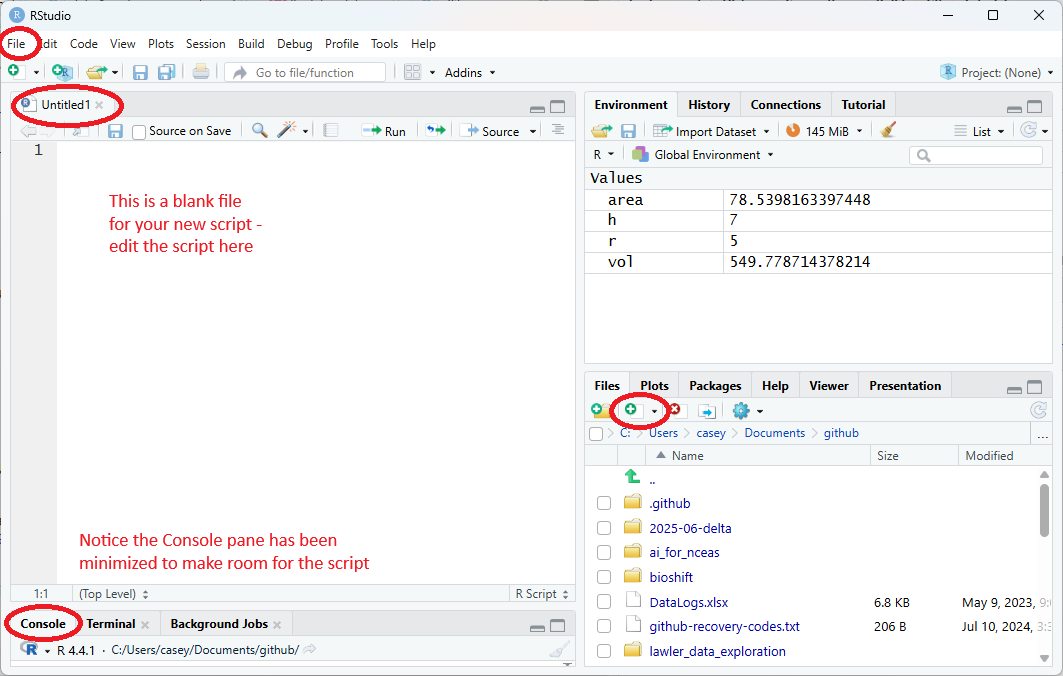
From the “File” menu, select “New File,” then choose “R Script” from the list of options. (We’ll look at other options later, particularly “Quarto document”)

You can also create the script from the “new file” button in the Files pane.

Notice a new pane appears above the Console. This is called the Source pane and is where we write and edit R code and documents. This pane is only present if there are files open in the editor.

Save the R Script in your script folder, name the file intro_to_programming.R. The name at the top of the Source pane will change from Untitled to the new file name.

A simple script

Let’s write some simple code in our script. We’ll start with the age of a dog in (human) years, then convert to dog years.

age_years <- 5

age_dog_years <- age_years * 7

After typing those lines, do you see the values in the Environment pane? Probably not - unlike the Console, the script does not automatically run the code when you type it in.

To interpret and run the code you’ve written, R needs you to send the code from the script (or editor) to the Console to execute it. To run code in an R Script:

  • Place your cursor on (or at the end of) a line of code you want to run, or highlight the line(s).
  • Then use the shortcut command + enter (Mac) or control + enter (Windows), or click the green Run button in the top right of the Source pane.

Try these shortcuts out and get comfortable with them - you will do this a lot!

Writing human-readable comments

Use the pound sign/hashtag # at the start of a line to create a comment - R will not run any text after that, so you can add human-readable comments to help explain what the code is doing.

Comments can also be used to “comment out” a line of code to temporarily prevent it from running. Use command shift C as a shortcut to toggle this.

### age in human years
age_years <- 5  ### can also put comments on the same line as code

### age in dog years
age_dog_years <- age_years * 7

### this line is commented out so will not run:
# age_centuries <- age_years / 100 

Multiple values

You can also store more than one value in a single object. Storing a series of ages in a single object is a convenient way to perform the same operation on multiple values at the same time. One way to create such an object is with the function c(), which stands for “combine”.

Let’s create a vector of ages using c() (we’ll talk more about vectors in the next section, Data structures in R).

age_yrs <- c(5, 3, 7)  ### create a vector of ages

yr_to_dog_yr <- 7      ### save the conversion factor as an object

### convert `age_yrs` to dog years:
age_dog_yrs <- age_yrs * yr_to_dog_yr 

### inspect the values
age_dog_yrs
[1] 35 21 49

Quick Tips

You will make many objects and the assignment operator <- can be tedious to type over and over. Instead, use RStudio’s keyboard shortcut: option + - (the minus sign). (use alt instead of option for Windows)

Notice that the RStudio shortcut automatically surrounds <- with spaces, which demonstrates a useful code formatting practice. Code is miserable to read on a good day. Give your eyes a break and use spaces.

RStudio offers many handy keyboard shortcuts. Also, option+Shift+K brings up a keyboard shortcut reference card.

For more RStudio tips, check out Master of Environmental Data Science (MEDS) workshop: IDE Tips & Tricks.