Scripts in R and RStudio

An introduction to programming in R


NCEAS Learning Hub

Creating an R script

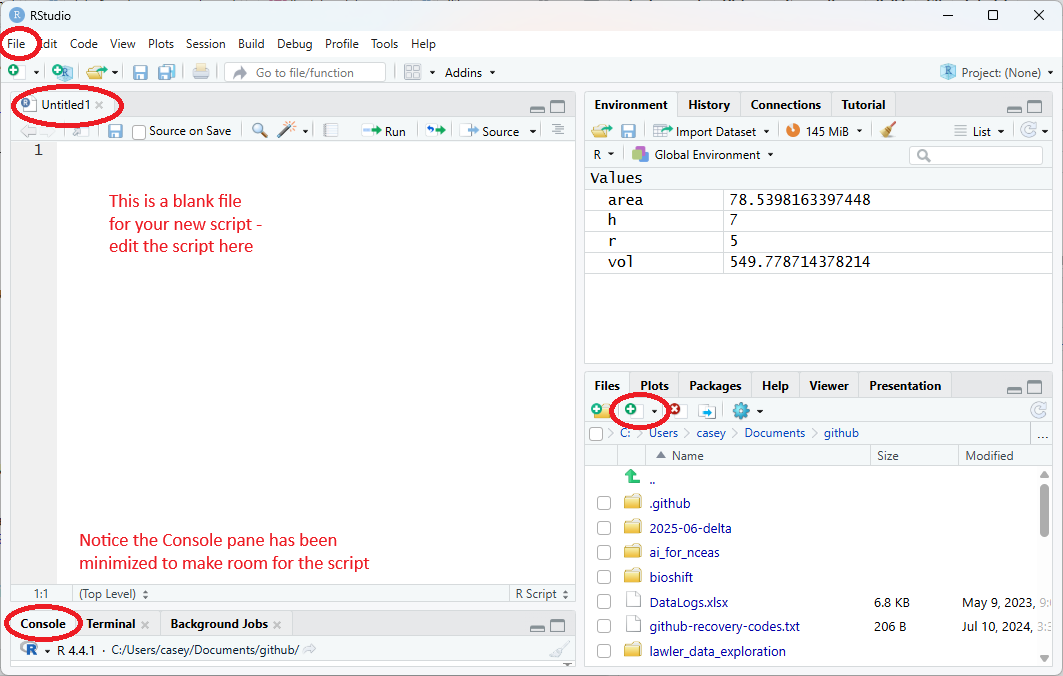
From the “File” menu, select “New File,” then choose “R Script.”

You can also create the script from the “new file” button in the Files pane.

A new pane appears. This is the Source pane, where we write and edit code and documents. This pane is only present if there are files open in the editor.

Save the R Script in your script folder, name the file intro_to_programming.R. The name at the top of the Source pane will change from Untitled to the new file name.

A simple script

Let’s write some simple code in our script. We’ll start with the age of a dog in (human) years, then convert to dog years.

age_years <- 5

age_dog_years <- age_years * 7

The script editor doesn’t execute code automatically, so nothing appears in the Environment until you send lines to the Console. To run code, place the cursor on a line (or highlight several) and press command + enter (Mac) or control + enter (Windows), or click the green Run button in the top right of the Source pane. These shortcuts are worth practicing because you’ll use them constantly.

Writing human-readable comments

Scripts also let you document your work. Lines starting with # are comments, which R ignores, so you can add brief explanations or notes.

Commenting is also useful for temporarily disabling code. Use command+shift+C to toggle comments on selected lines.

### age in human years
age_years <- 5  ### can also put comments on the same line as code

### age in dog years
age_dog_years <- age_years * 7

### this line is commented out so will not run:
# age_centuries <- age_years / 100 

Multiple values

You can store multiple values in a single object. For example, a vector of ages lets you apply the same operation to all values at once. You create a vector with c(), which combines the values into one object.

age_yrs <- c(5, 3, 7)  ### create a vector of ages

yr_to_dog_yr <- 7      ### save the conversion factor as an object

### convert `age_yrs` to dog years:
age_dog_yrs <- age_yrs * yr_to_dog_yr 

### inspect the values
age_dog_yrs
[1] 35 21 49

Quick Tips

You’ll assign objects frequently, and typing <- each time is slow. Use RStudio’s shortcut: option + minus (Mac), alt + minus (Windows). The shortcut also inserts spaces around <-, which makes assignments easier to read. Consistent spacing improves clarity and reduces strain when scanning code.

RStudio offers many handy keyboard shortcuts. Also, option+Shift+K brings up a keyboard shortcut reference card.

For more RStudio tips, check out Master of Environmental Data Science (MEDS) workshop: IDE Tips & Tricks.