Notice the default panes:
- Console (entire left)
- Environment/History (tabbed in upper right)
- Files/Plots/Packages/Help (tabbed in lower right)
NOTE: New tabs may show up in different contexts (e.g., Git tab)

Let’s take a tour of the RStudio interface!

Notice the default panes:
NOTE: New tabs may show up in different contexts (e.g., Git tab)
Quick Tip: You can change the default location of the panes, among many other things. More information here.
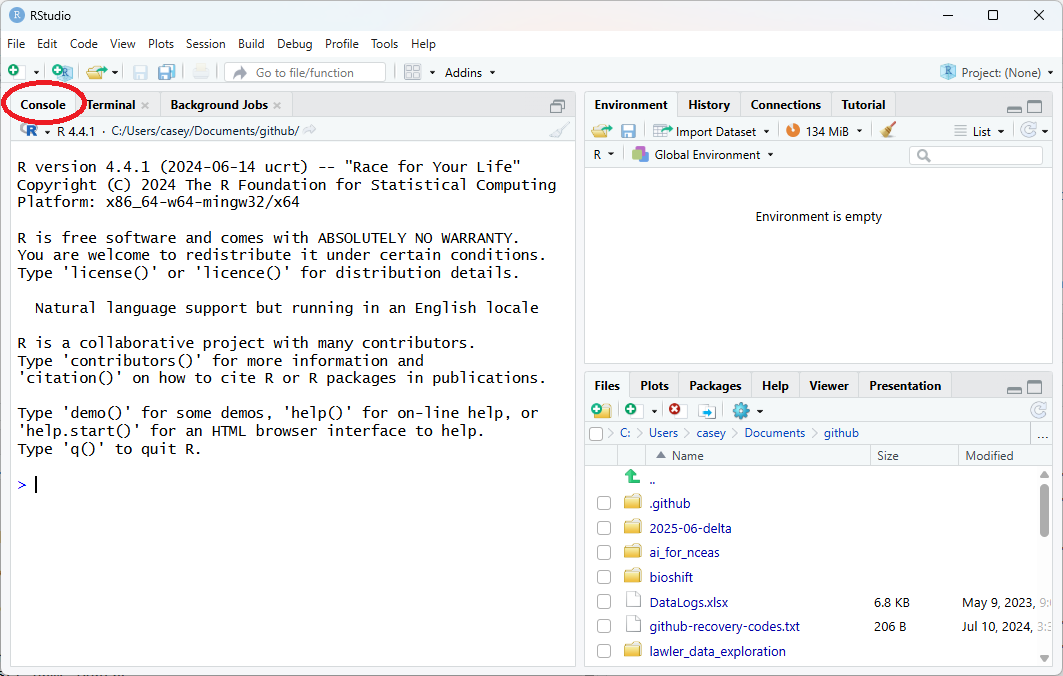
Console is where you can directly type R code.
When you start a new session, you’ll see some text that includes the current version of R software installed (yours may not match the image).
There are tabs for Terminal and Background Jobs. Terminal is direct access to your computer’s operating system (not R software).
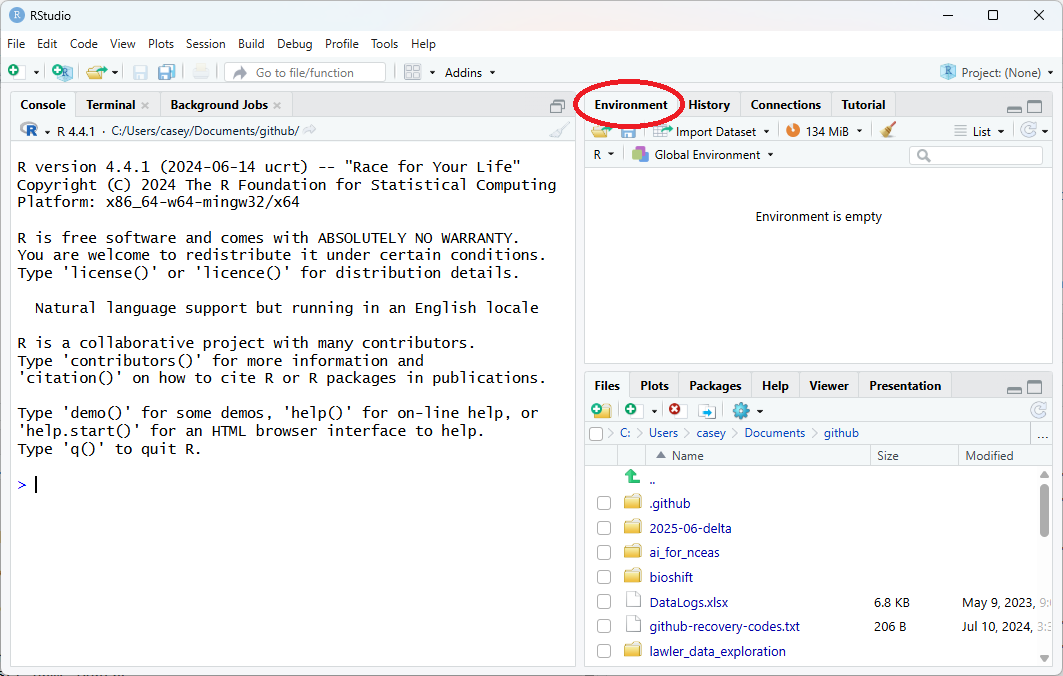
Environment displays information in working memory - “objects” that may be individual values, lists or vectors with multiple values, data frames of tabular data, etc.
When you start a new session, the environment pane should say “Environment is empty.” As you use R to make calculations and store values, you will see objects in this pane.
There is a tab for History and perhaps others. History will show you the sequence of any commands you have typed or executed into R. When writing R scripts, the History tab is not necessary for reproducible science.
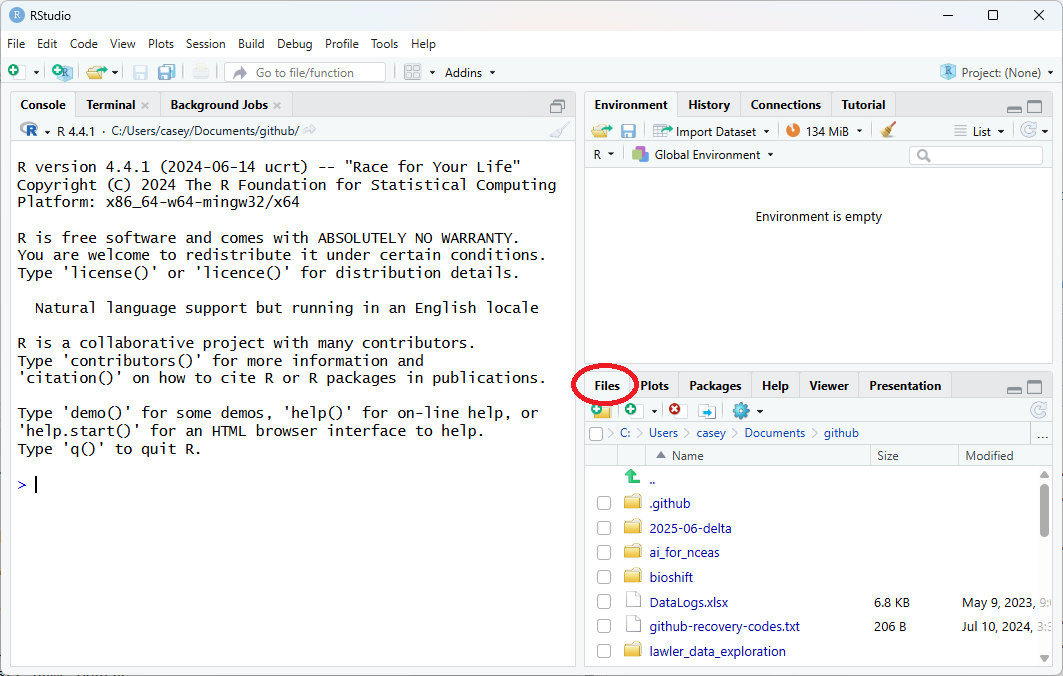
Files displays files and folders on your computer. You can navigate just like you would normally browse on your computer.
Note the other tabs in this pane: when you create plots or tables, they will generate in the plots pane. Packages provides information on the packages and versions installed, and Help is provides searchable documentation for those packages and functions. Viewer and Presentation display HTML or other outputs.
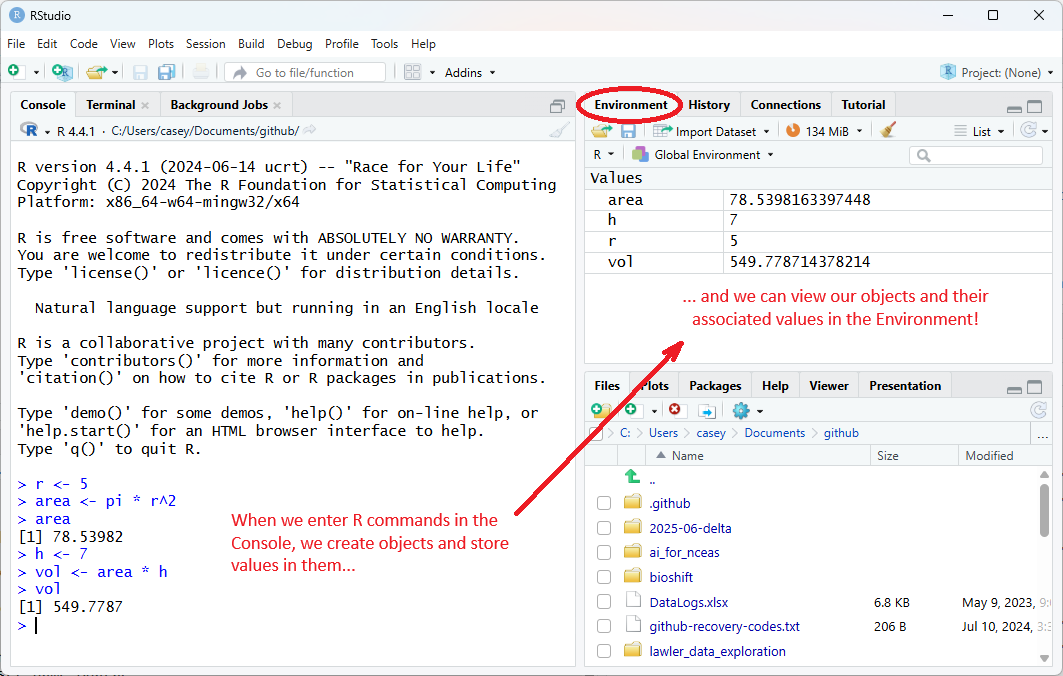
Now the Environment pane contains the objects and values we created in our example.